

Medicine reminder app for parents in another city
You are in Bengaluru, or Dubai, or Dallas. Your mother is in Vijayawada with eight strips in a drawer and a prescription she cannot read. You phone at eight to ask whether she took the morning ones, and she says yes, and neither of you is sure.
This page is how to set DrBell up so that her phone does the asking, with a picture of the right strip, at her own meal times, and so that you are told when a dose is missed rather than having to ask. It takes about twenty minutes the first time, most of it typing the prescription.
What DrBell is, and is not. It is a reminder and a record: it rings for the medicines her doctor already prescribed, shows what to take, and writes down what happened. It gives no medical advice, never suggests a medicine or a dose, and never changes one. Anything about what she should take is a question for her doctor.
What you need
- Her phone. An Android phone, with DrBell installed from
Google Play. (The iPhone app is coming to the App Store.) The reminders ring on her phone, so it has to be a phone she keeps near her, charged, with a SIM in it. It does not need internet to ring; it needs it once, to set up.
- Your own phone or computer, for care.drbell.app,
the family's side of DrBell. Nothing to install.
- The prescription, photographed or in your hand, and the strips, for
their photos.
Step 1: set her up, from where you are
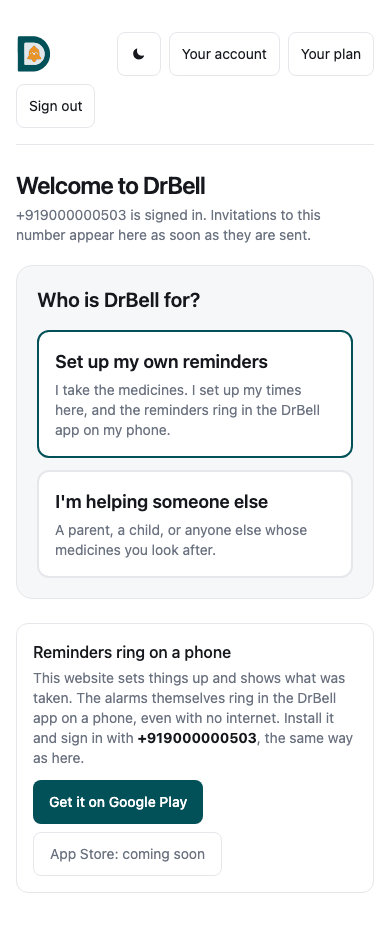
Open care.drbell.app and sign in with your own mobile number (the same button creates your account; there is no password). The first time, the site asks who DrBell is for. Choose I'm helping someone else, then Set up someone's reminders.
Give her name, the language her reminders should speak (medicine names are never translated, whatever the language), her time zone if it differs from yours, and how the screen should look on her phone. For most parents choose Large and simple: the same screens, bigger words, bigger buttons.
If you are visiting her when you do this, the same setup works in the DrBell app on her phone instead: sign in with her number, choose Me, and add yourself afterwards under Who looks after you. Either way ends in the same place.
Step 2: her meal times, not a clock
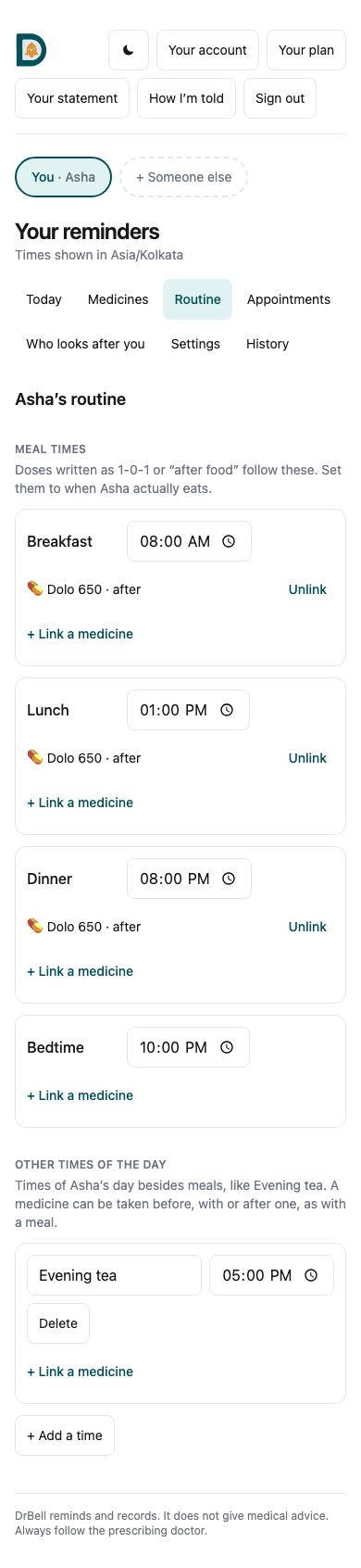
DrBell asks for her meal times before it asks for a single medicine, and it is worth getting them right. Every dose written 1-0-1 or "after food" is timed from them, so a breakfast that is really at 9:30 should be set to 9:30, not left at the 8:00 that suits somebody else. If Sunday breakfast is later, Meal times on other days holds a second set for those days.
Set them to when she actually eats. You can change them later under Routine, and every reminder that follows a meal moves with them.
Step 3: type the prescription as written
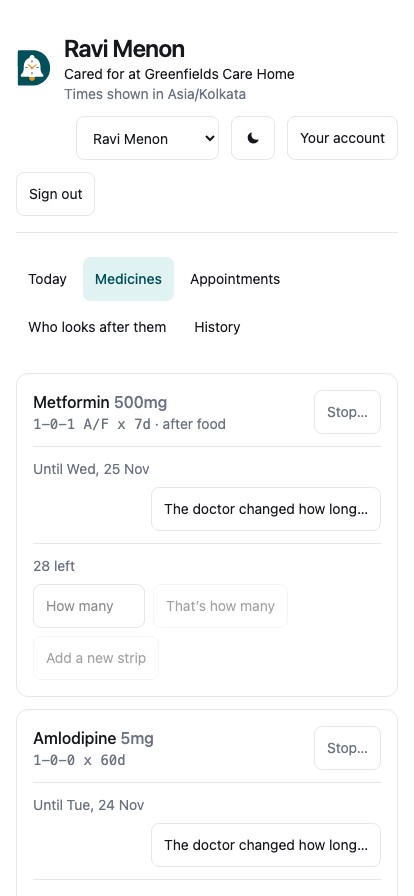
Under Medicines, + Add a medicine. Type the name exactly as printed on the packet, and the shorthand exactly as the doctor wrote it: 1-0-1 A/F x 15d, BD, TDS, HS, SOS. Press Read it and DrBell says, in a sentence, what it understood: 1 tablet 30 min after breakfast, 1 tablet 30 min after dinner, for 15 days.
Read that sentence against the prescription before you save. DrBell is reading handwriting shorthand; the prescription is the authority, and it will not save a medicine until you have confirmed its sentence. If the shorthand is unfamiliar, what 1-0-1, BD, TDS, HS and SOS mean reads each piece back.
Say what kind of medicine it is (tablet, syrup, drops, inhaler), so a dose is counted the right way. If the doctor said only some days, or every other day, Which days? covers that. A course that steps down is typed with then between the steps.
Step 4: the photo of the strip
A name on a screen means little to someone on eight medicines. A photo of the strip, as it looks in her drawer, is the thing she will actually recognise, and it becomes the largest thing on the reminder.
You can add the photo from the website while adding the medicine, if you have one, or she (or whoever is with her) can add it on the phone under Your medicines → Add a photo. Photograph the front of the strip the way it sits in the drawer. The medicine works without a photo; it is simply easier with one.
Step 5: put the reminders on her phone
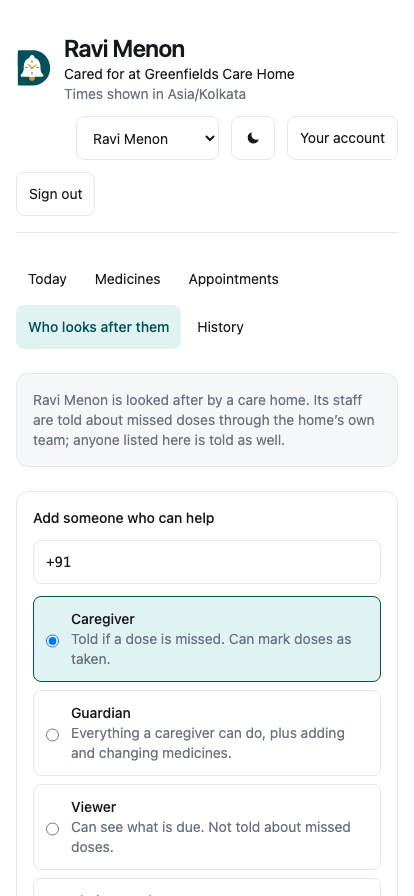
Under Who looks after her, enter her mobile number with the country code and choose Their own phone. Then, on her phone, open DrBell and sign in with that number. A six-digit code arrives by SMS; type it in, and the invitation is waiting: Accept. From then on her record is on her phone, the reminders ring there, and her Taken is her own.
DrBell then asks her phone for what it needs to ring: notifications, alarms, and on Android permission to stay awake in the background. Say yes to each. The commonest reason a reminder never rings is a phone that was told to save battery by putting DrBell to sleep. On Xiaomi, Redmi, Vivo, Oppo, Realme and Samsung phones there is one more switch, auto-start; DrBell shows the steps for that phone and opens the right screen. If you are not there to do it, Android and iPhone: how reminders ring is the page to read her over the phone.
Being told when she misses a dose is on the Plus and Family plans. On the Free plan you, and anyone you add, can see her record and every dose from anywhere, but nobody is messaged. On a paid plan you are told without inviting yourself, because you set the record up. To add a brother or a sister, enter their number and choose Caregiver (told when a dose is missed, can mark doses taken) or Guardian (can also add and change medicines). They have to accept; you can remove anyone at any time.
What she sees when it rings
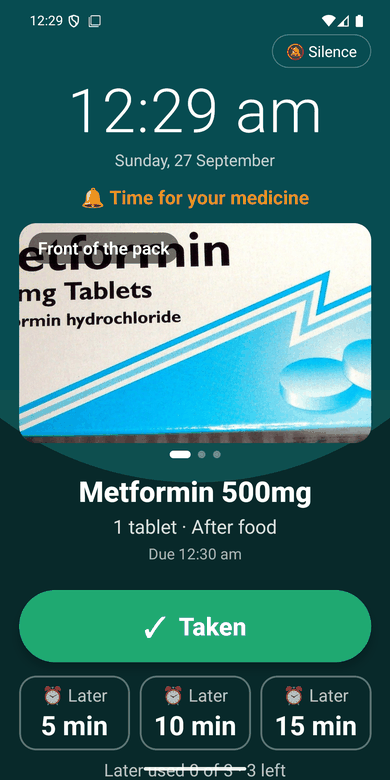
At the time, her phone rings like an alarm clock, even locked, even on silent, even with no signal. The screen fills with the photo of the strip, the name as printed on the packet, how much, and whether it is before or after food. One big Taken button, and Later for 5, 10 or 15 minutes. Read aloud says it in her language.
If nobody answers, it keeps ringing for up to three minutes, then rings again ten minutes after the time and again at twenty. Pressing Taken records it on the spot, and you see it the next time her phone is online.
What happens when a dose is missed
This is the part that lets you stop phoning at eight. It is what the Plus and Family plans are for: on Free you see every dose on the website, and nobody is messaged about it.
- Late. About half an hour after the time, if nothing has been
pressed, you get a notification: Amma has not taken Glycomet, due at 8:30 AM. Her phone is still ringing again by itself.
- Missed. When the window to take it closes with nothing pressed, the
dose is recorded as missed and you are told. For a medicine you have marked critical, you are told straight away, without waiting.
- Snoozed again and again. If the same dose keeps being put off, you
are told that too. It is usually the sign that something is actually wrong.
- The phone itself. If her phone cannot ring reminders for half an
hour, or stops checking in for a day, DrBell tells her and tells you, in the daytime, and tells you again when it is fixed.
You are told by a notification on your phone, and by email, WhatsApp or SMS as your plan allows. WhatsApp only goes to a number that has turned it on, under Your account → How you will be told.
If two of you are told, either can press I'll handle it, on the notification or on Today, and the other stops being nudged about that dose. Four worried people ringing one 74-year-old at once is its own harm.
What you can do from where you are
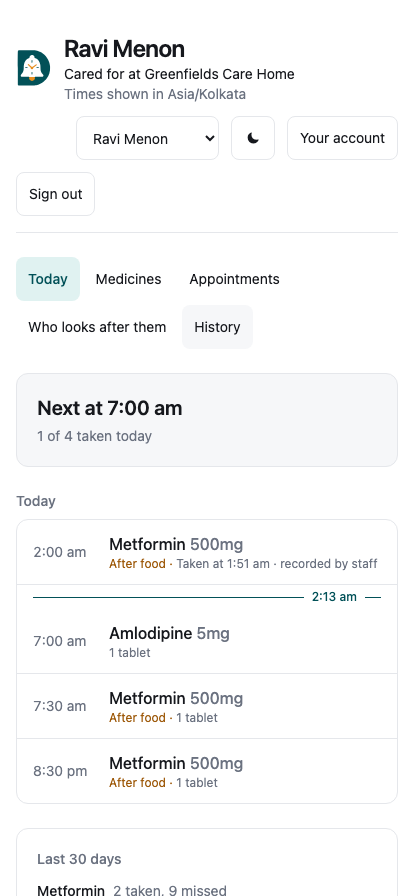
Today on care.drbell.app shows each of her doses, in order, in her time zone, and what became of it. From there:
- Mark taken, when she tells you on the phone that she took it but
did not press the button. The record is corrected, and anyone who was told it was missed is told it was taken after all.
- Skipped…, with the reason if you know it (felt unwell, none left,
the doctor said so). It is recorded as skipped, not missed, and nobody is told she forgot.
- Move this time…, on a dose that has not rung yet, moves just that
dose to later today, up to three hours. Tomorrow rings as usual.
- How many are left?, under each medicine. Count the strip once, type
the number, and DrBell counts down with every dose and warns you before it runs out, so the next strip is bought before the last tablet, not after.
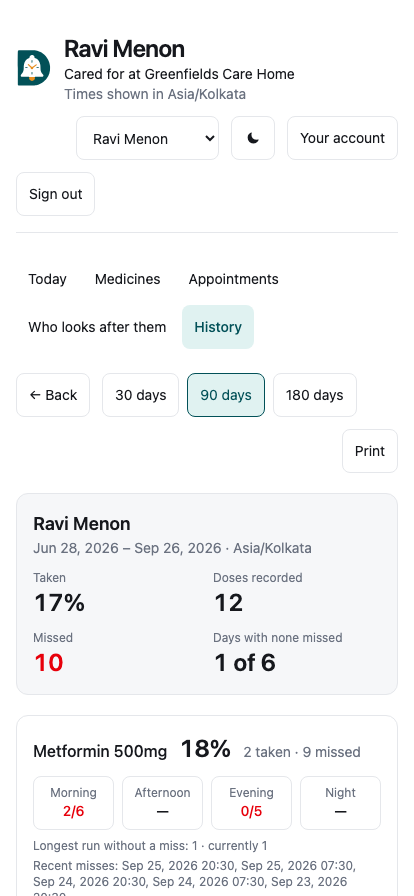
History is what to look at before her next appointment: the percentage taken over 30, 90 or 180 days, and under it, for each medicine, how the doses fall across morning, afternoon, evening and night. "Every miss is the night dose" is worth more to a doctor than "82%". On the Plus plan, Create a link makes a page the doctor can open without an account; it expires after 14 days and you can revoke it sooner.
Everything you see, she can see too. Access is granted deliberately, is visible to her, and every read of her record is logged.
Questions
She has a very basic phone. DrBell needs an Android phone (or, soon, an iPhone). If she has none, Set up someone's reminders still works: the reminders ring on your phone, for her, and you call her. For a parent in the same house, that is often enough.
She will not press the button. Then the record says missed, and you are told, which is the point. Mark taken corrects it when she tells you. DrBell records what was pressed, not what was swallowed, and never pretends otherwise.
Her phone did not ring. Nine times in ten it is the battery setting in Step 5. Android and iPhone: how reminders ring lists every switch, phone by phone.
Does it cost anything? Setting her up, unlimited medicines, the photos and the alarm that keeps ringing are free, with no ads, and you can see her record from anywhere. Being told when a dose is missed is on Plus and Family: Plus tells two people, keeps the whole history and makes the doctor's link; Family covers up to six people in the house. Prices are on the home page.
What if her doctor changes something? Under the medicine, The doctor changed the dose or The doctor changed how long; type it as the doctor wrote it, and DrBell reads it back before anything changes. Only change it when the doctor has said to. DrBell never suggests a change itself.
DrBell is made in Hyderabad by Newtact Lab, and is a reminder, not a doctor. Get it on Google Play, or start at care.drbell.app from wherever you are.