

For care homes and hospitals
You manage DrBell for your residents from a browser at org.drbell.app. Nothing needs installing, and it works on the office computer, the ward tablet and a phone.
1. Register the organisation
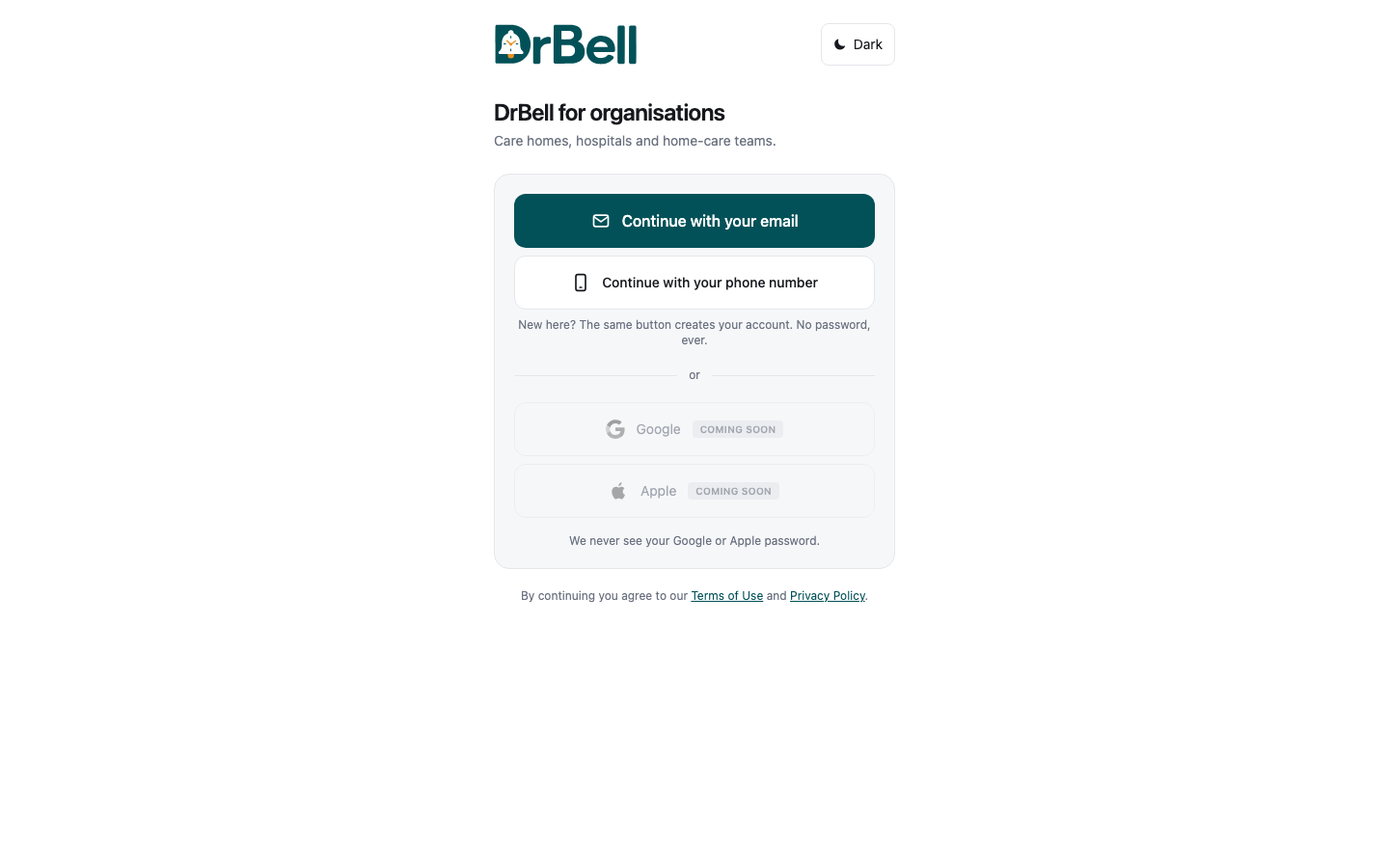
Open org.drbell.app and choose Continue with your phone number. The same button creates your account — there is no separate sign-up. You will be sent a six-digit code.
Signed in with no organisation yet, you are offered Register a new organisation. You need:
- the home's name as you want residents' families to see it
- a short name for links (filled in for you; change it if you like)
- the type — care home, hospital, clinic, home-care team, pharmacy
- a contact email, so we can reach you about the approval
Your organisation starts as "awaiting approval" and cannot hold a single resident record until somebody at DrBell approves it. That is deliberate: "we are a care home" is a claim about the real world, and no software can check it. We aim to approve within one working day. If it is urgent, write to hello@drbell.app.
Whoever registers is the owner.
2. Admit residents
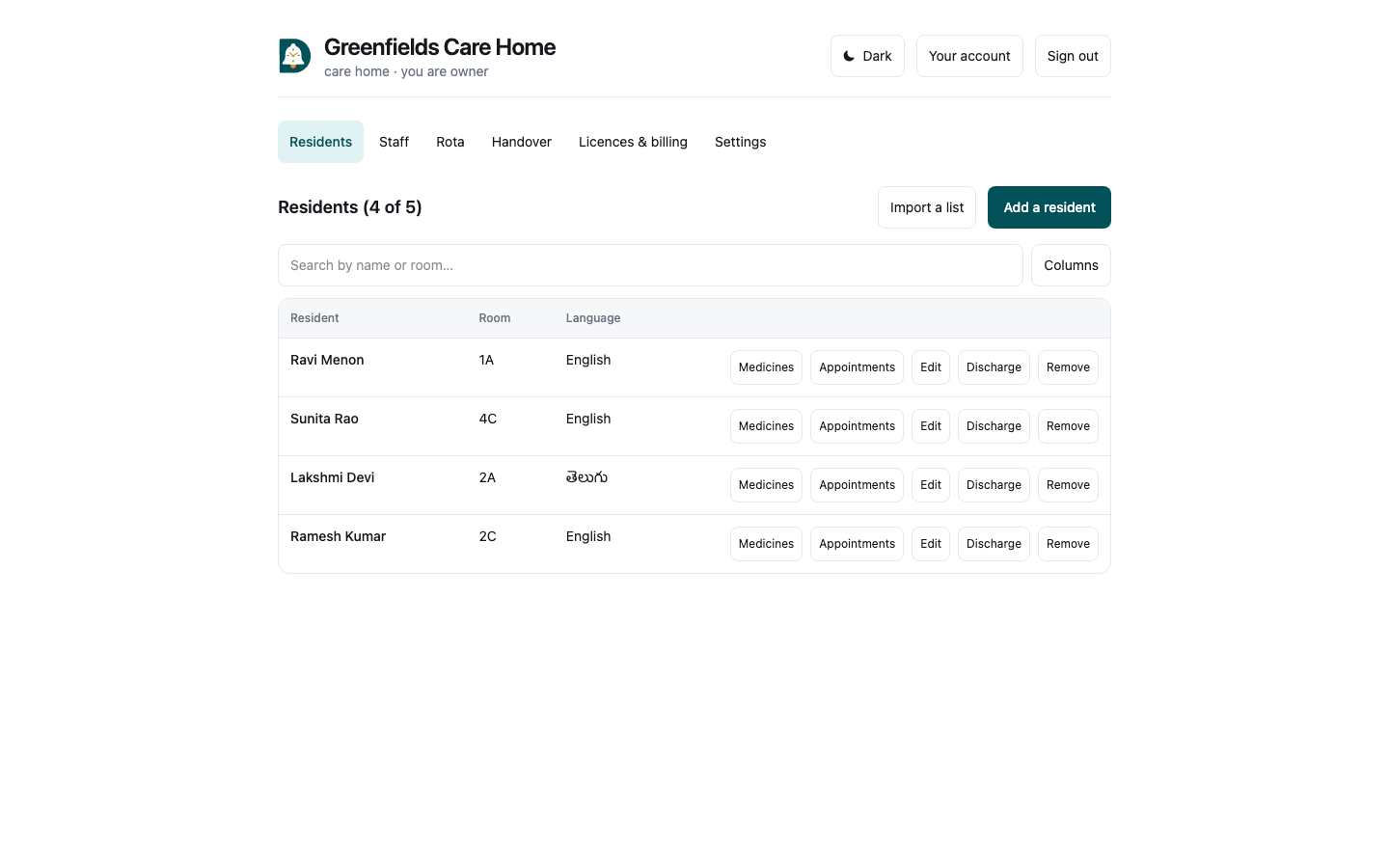
Residents → Add a resident.
| Field | What to put |
|---|---|
| Name | As staff refer to them |
| Room or bed | Short and consistent — 2B, not Room 2B. It orders the shift handover, so a nurse walks the corridor once |
| Language | The language their reminders are read in. Medicine names are never translated |
| Screen | Elder — one card, large type, two buttons. Standard. Kid — a guardian confirms each dose |
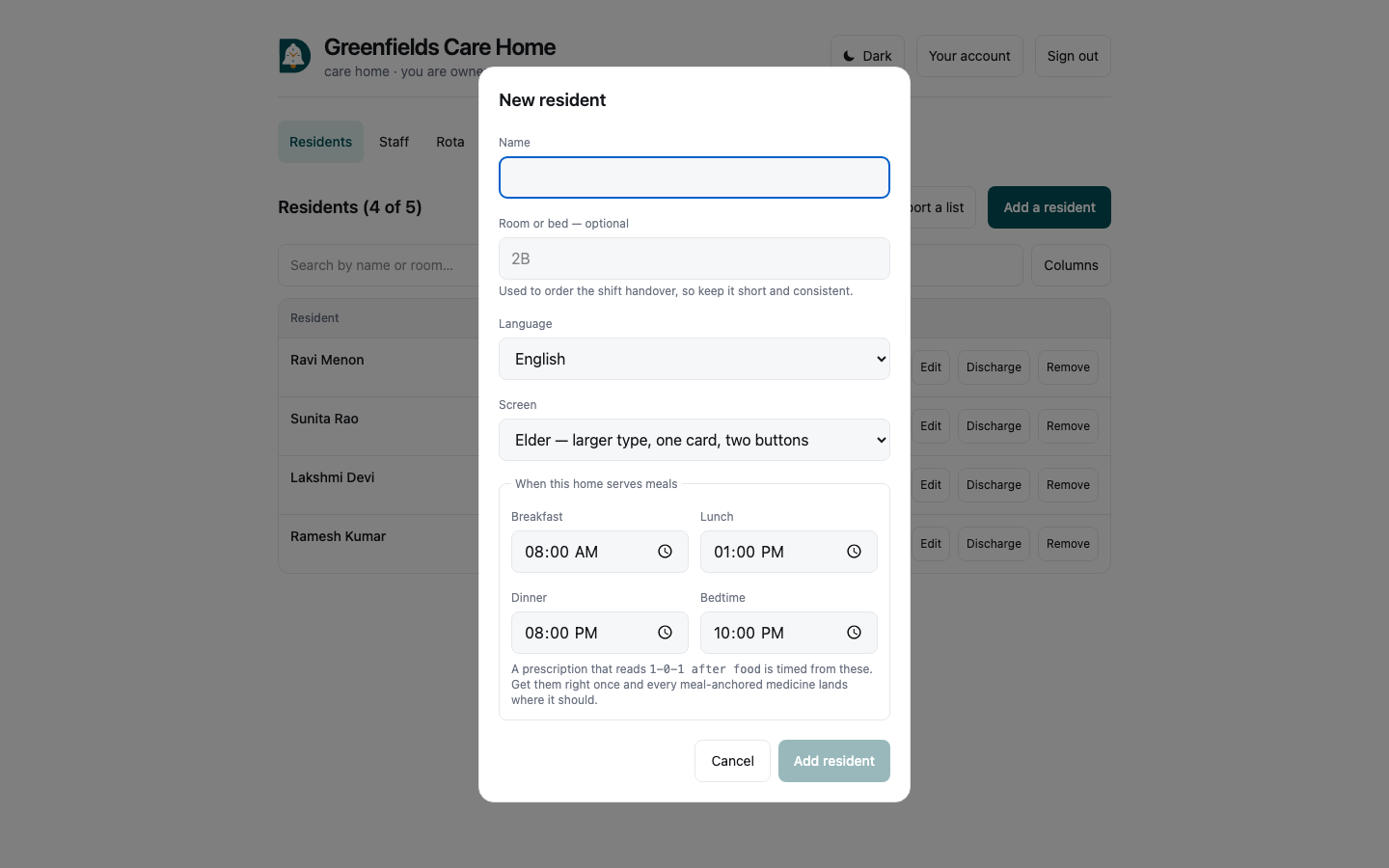
Edit corrects any of it later — a room after a move, a language chosen wrongly at admission.
Remove erases the resident: their medications, schedules, every recorded dose, prescriptions and photographs. It cannot be undone, and you are asked to type their name to confirm. It frees a contracted seat immediately, so a resident who has left should be removed rather than left in place — otherwise you keep paying for them and cannot admit the person in that bed.
The header reads Residents (1 of 5): how many you have, and how many you contracted.
3. Enter their medicines
This is the part that makes the rest work. Until a resident has medicines, nothing is ever due and the rota has nothing to show.
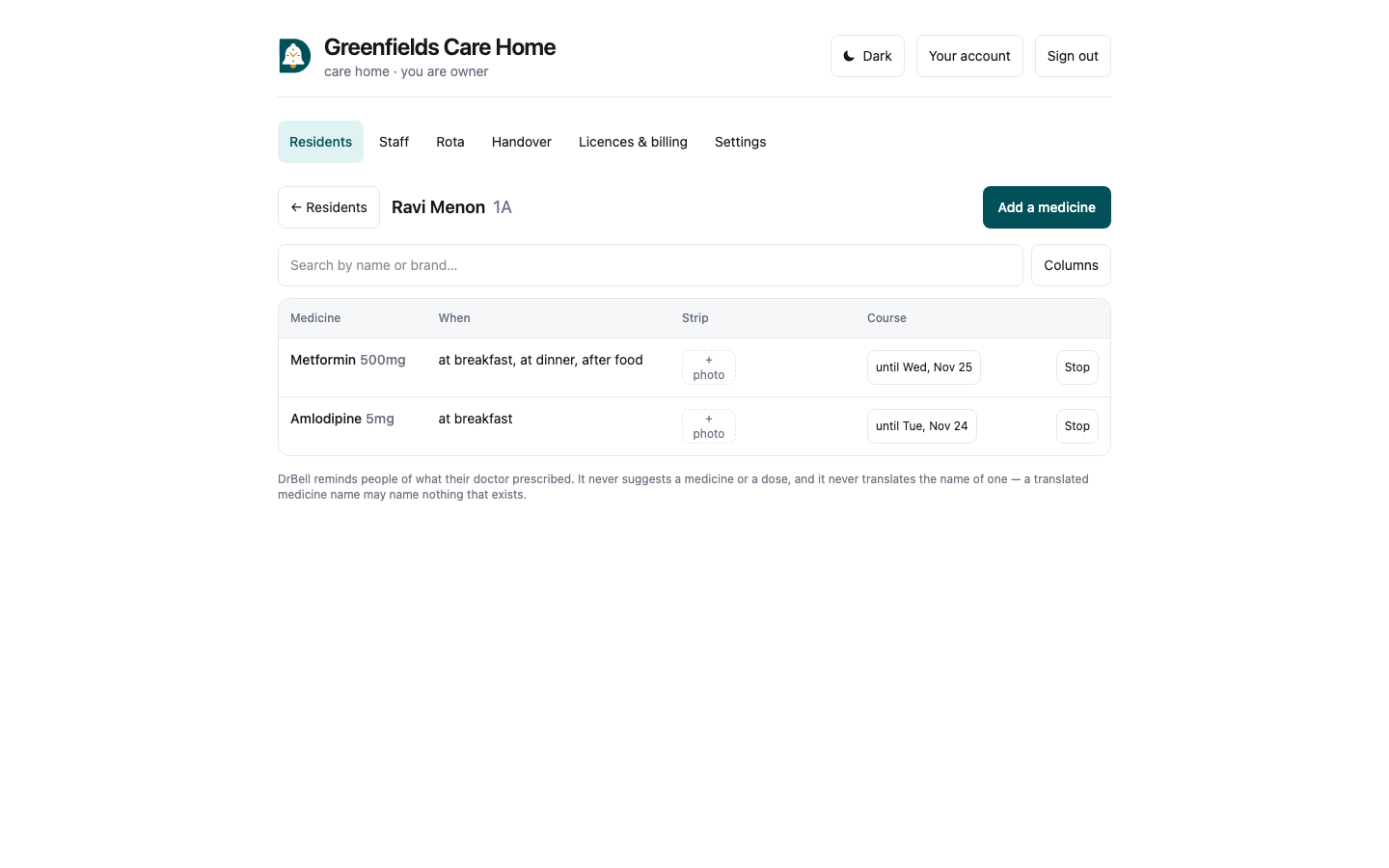
Residents → click the resident, or press Medicines.
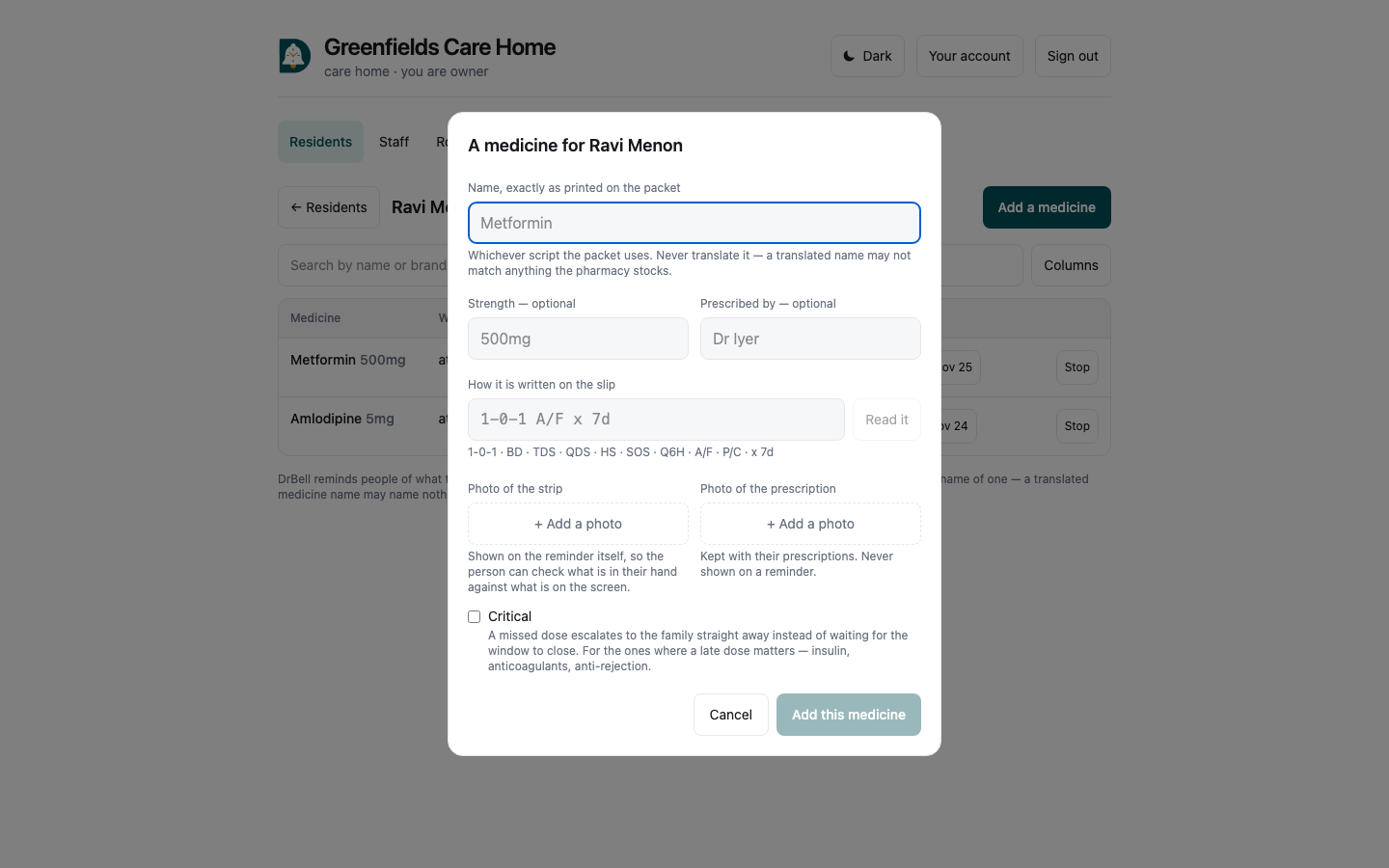
| Field | What to put |
|---|---|
| Name | Exactly as printed on the packet, in whatever script that is. Do not translate it |
| Strength | 500mg — optional |
| Prescribed by | Optional, but useful when somebody asks later |
| How it is written on the slip | The shorthand from the prescription |
Then press Read it. DrBell shows you what it understood, in a sentence:
1 tablet at breakfast, 1 tablet at dinner after food
Check that sentence against the slip before pressing Add. DrBell will not save until you have pressed Read it, because guessing about a dose is not an acceptable mistake. If it says "some of this was assumed", it filled in something the prescriber did not write — read it twice.
Shorthand it understands:
| You write | It means |
|---|---|
1-0-1 | one at breakfast, none at lunch, one at dinner |
1-1-1-1 | four times, including bedtime |
BD / BID | twice daily |
TDS / TID | three times daily |
QDS / QID | four times daily |
OD / QD | once daily |
HS / QHS / nocte | at bedtime |
SOS / PRN | only when needed — never alarms |
Q6H | every six hours |
A/F P/C | after food |
B/F A/C | before food |
W/F | with food |
E/S | on an empty stomach |
x 7d | for seven days, today included |
Tick Critical for the ones where a late dose matters — insulin, anticoagulants, anti-rejection. A missed critical dose escalates to the family straight away instead of waiting for the window to close.
When the doctor changes how long
The Course column says until a medicine's last day, or no end. When the doctor extends a course, shortens it, or says to carry on, press it: choose the new last day (it is included, and cannot be before today — to end it now, stop the medicine) or No end, note what the doctor said if you like, and Record the change. Future reminders are rebuilt; what was given is kept; the change is in the audit log with your name.
Admitting several at once
Import a list, on the Residents tab. A care home arriving with forty residents already in a spreadsheet should not type them in one at a time.
Download the template, or paste rows straight in. Column names are matched generously — name, resident name and Full Name all work, and a Language column may say "Telugu" rather than a code.
Check the file first. Nothing is created until you press Admit: you see every line, what will happen to it, and why anything is being skipped. Columns nothing was read from are named, so a Room No. that DrBell did not recognise shows up before every room ends up blank rather than after.
The photograph
This is the part residents actually notice. + photo on any medicine, or the photo fields when you add one, attaches a picture of the strip — and that picture appears on the reminder itself, so the person can check what is in their hand against what is on the screen.
Photograph the strip as it looks in the drawer, not the box front. JPEG, PNG, WebP or HEIC, up to 12MB; a phone photo is 2–5MB.
You can also attach the prescription. That is kept with the record and is never shown on a reminder.
Most homes add the photo later, from the table, because the slip is in one hand when the medicine is typed and the box is in a drawer down the corridor. That is expected — the medicine works without it, and the picture can be added any time.
Stop ends future reminders. It does not erase anything: the medicine and every dose already recorded stay in the record, because "was she on it in March?" is a question a home has to be able to answer.
4. Staff
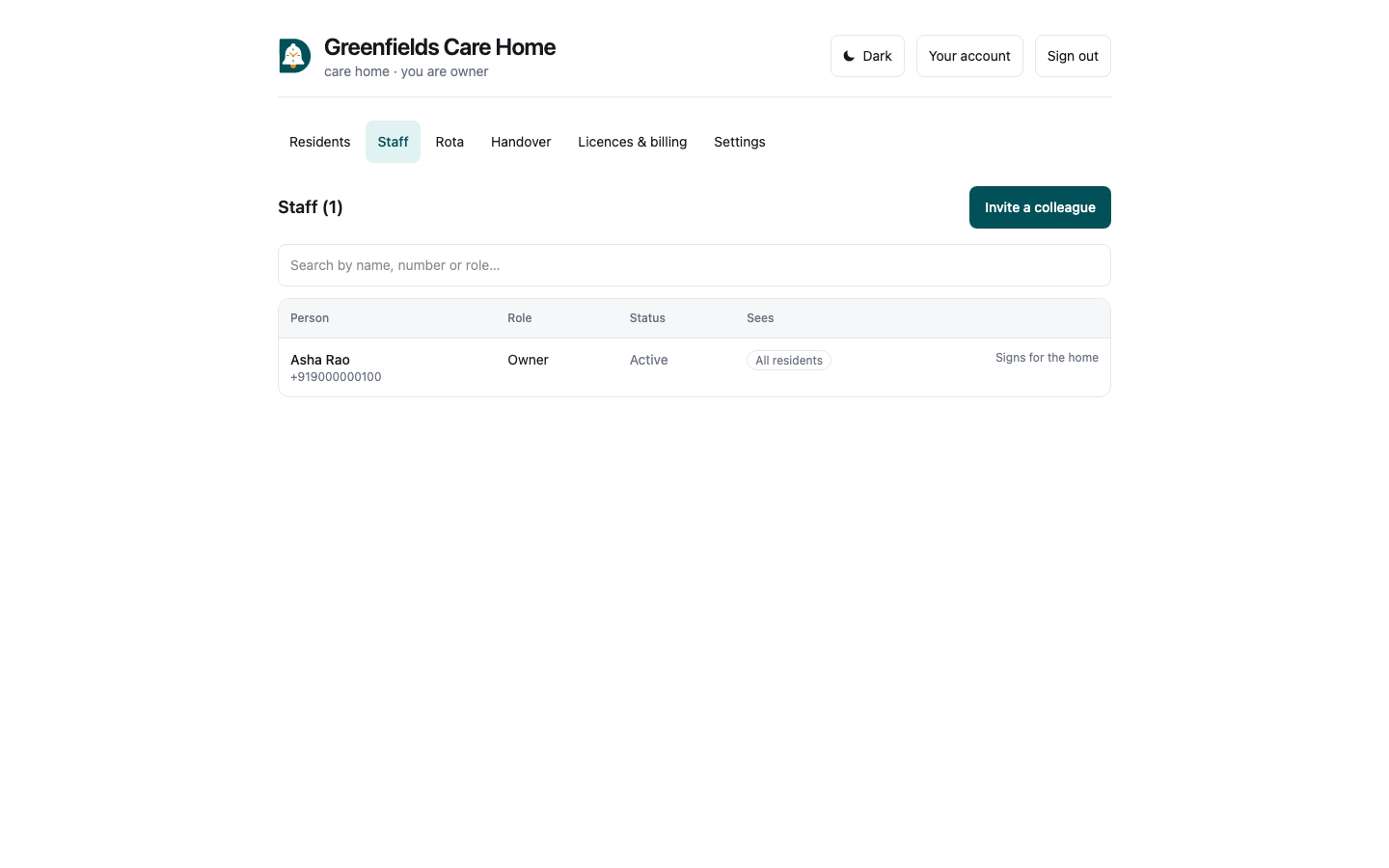
Staff → Invite a colleague. You need their mobile number, and they must already have an DrBell account — staff on a system holding medical records are not conjured from a typed phone number. Ask them to install the app and sign in once first.
| Role | Can |
|---|---|
| Owner | Everything, including erasing the organisation |
| Admin | Manage staff and residents. Cannot erase the organisation |
| Staff | See assigned residents and record doses. No history |
| Clinician | Read medication history and adherence. Cannot record doses |
| Billing | Seats and invoices only. No access to any resident |
Confining someone to a ward
Change → Confine to specific residents. This is the setting worth getting right. Left off, that person sees every resident the organisation holds. The "Sees" column says which is in force on every row, so a mistake is visible without opening anything.
A scope with nothing ticked shows No residents assigned in amber. That is a valid way to suspend somebody without removing them — but it is rarely what was meant, which is why it is amber and not green.
Remove ends their access immediately, everywhere. Doses they already recorded keep their name on them. Nothing is erased, and you can invite them back.
5. The rota
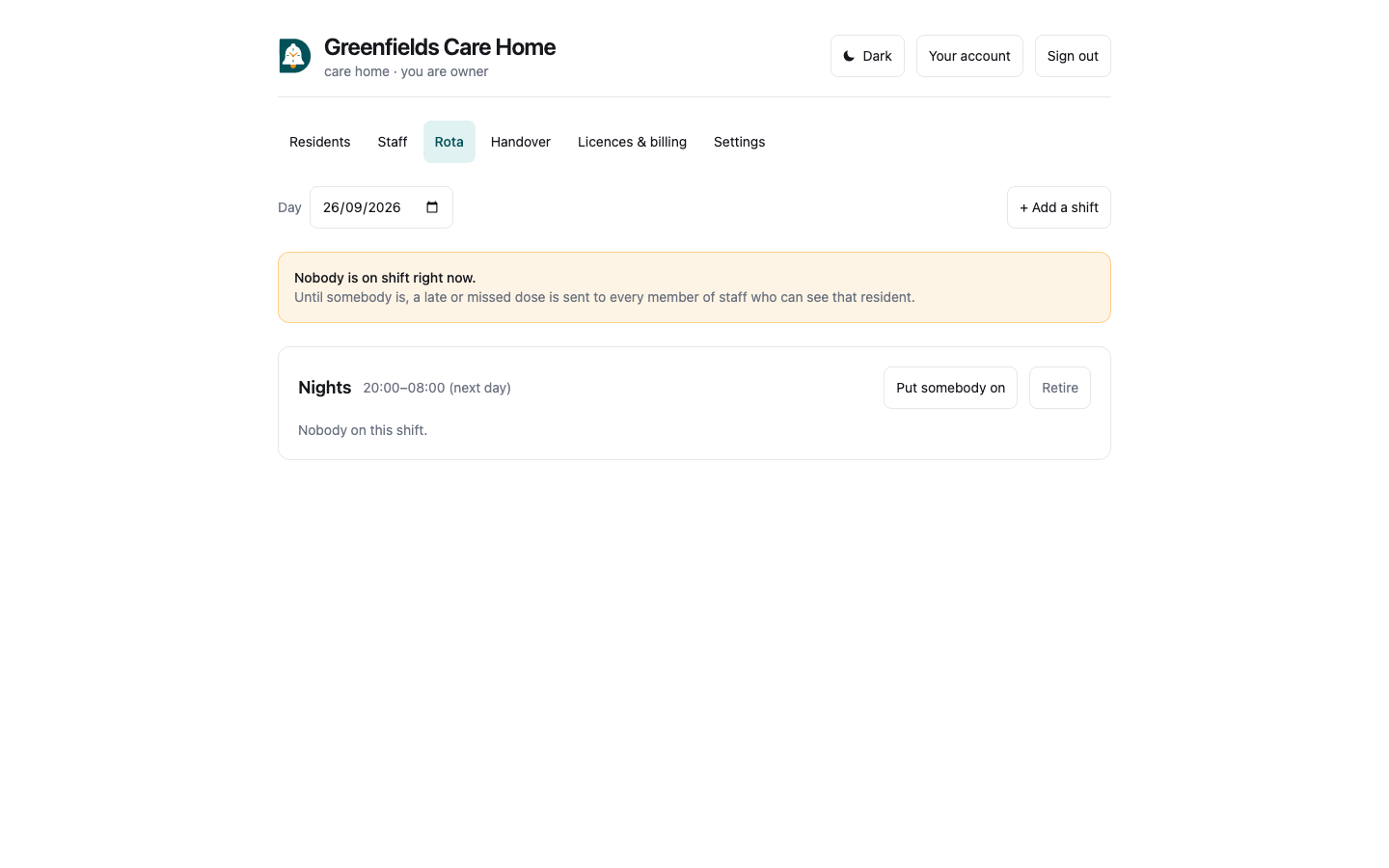
Rota answers two questions that get asked minutes apart: who is on today, and what is still outstanding right now.
First define the shifts this home actually runs — + Add a shift. Name it whatever your handover calls it: Early, Late, Nights. If the end time is before the start, you are asked whether it runs past midnight. Answer it honestly rather than letting software guess: guessing wrong puts the shift on the wrong day.
Then Put somebody on for a given day, and tick which residents they are responsible for.
Being on the rota is not access. Ward scope decides what a nurse may see; the rota decides what she is responsible for today. Changing the rota never grants or removes access to a record.
Who is told when a dose is late or missed
Every owner, admin and member of staff who can see the resident — their ward scope applies — is told when one of the home's residents is running late or has missed a dose: in the app, and for a missed dose by WhatsApp or SMS too, wherever DrBell has those switched on. Clinicians and billing staff are not. Family you have invited are told as well, as they choose. The timings are the home's own, under Settings.
The rota comes first. If somebody is on shift right now and has this resident ticked for that shift, only they are told — the rest of the team is left in peace. If nobody is (no rota for today, a gap between shifts, or the person on shift cannot see this resident's ward), everyone above is told. A rota can narrow who hears; it can never mean nobody does. Shift times are read in the home's own time zone, and a night shift that runs past midnight counts until it ends the next morning.
On shift right now is at the top of today's rota, because that is why somebody opened this at 08:15. It lists whoever is on at this minute — a night shift that started yesterday counts until it ends — with when their shift ends, and under each, the doses due in their shift that are still not recorded: the resident, the room, the medicine, and whether the window has closed. If nobody is on, it says so, because that means a missed dose goes to everyone. Times are the home's own.
6. The handover
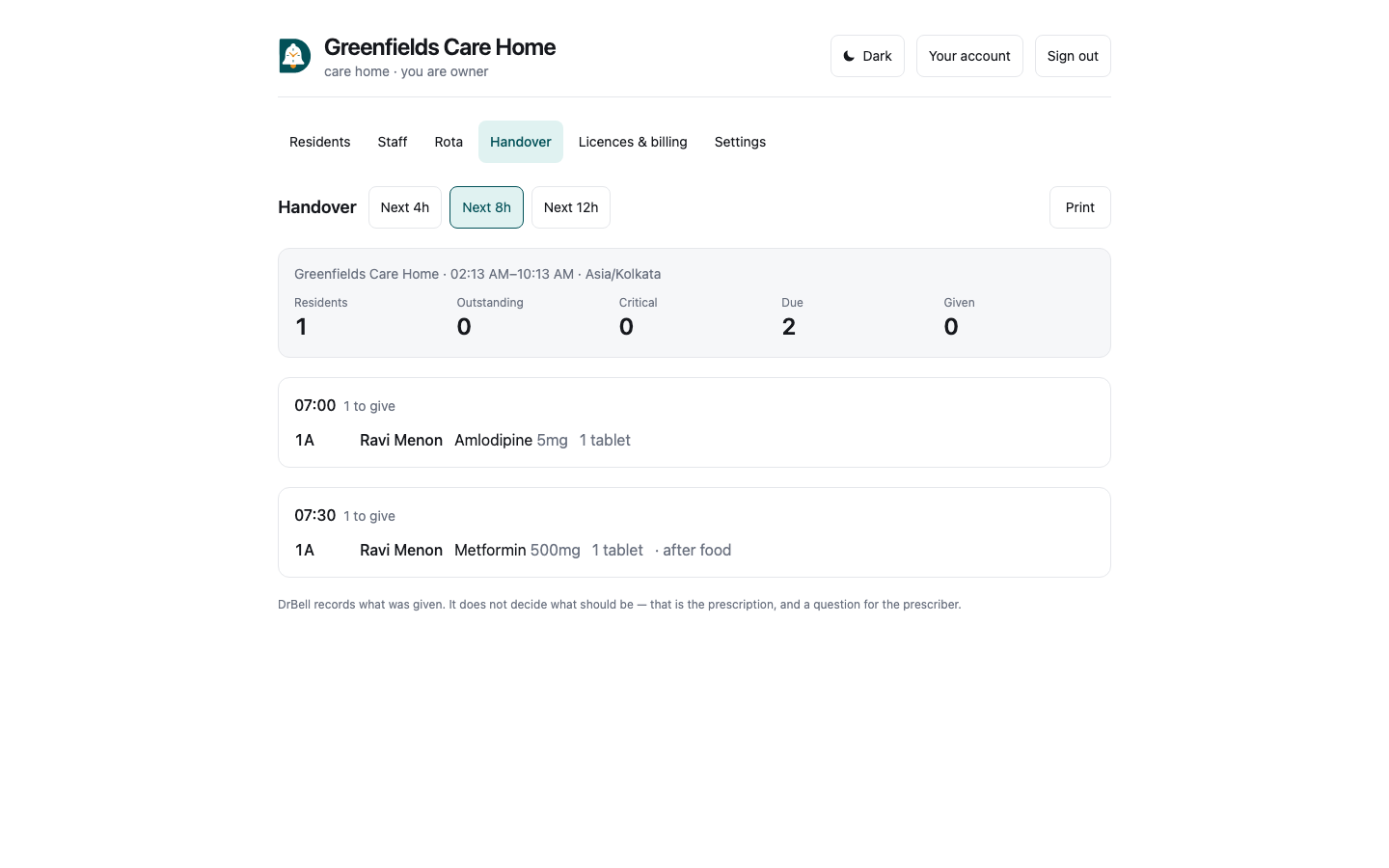
Handover is what one nurse hands to the next: what is still owed from the shift ending, and what falls due during the shift beginning.
It is a worklist, not a report, and the order is the point:
- Still owed from the last shift comes first — oldest first, with
criticals ahead of ordinary medicines of the same age.
- Then each round, grouped by time, walked in room order —
9Abefore
10A, so nobody crosses the building twice.
Each line is room, resident, medicine, dose and food instruction, because that is what somebody standing at a door needs and nothing else is.
Pick Next 4h / 8h / 12h to match your shift, and Print if the round is walked with paper. If the list is longer than one screen can hold it says so rather than stopping quietly — shorten the window to see all of it.
A dose due just before the shift started, whose window is still open, appears in the coming round rather than vanishing. The outgoing nurse did not get to it, it is still givable, and the boundary means nothing to the resident.
7. Seats and billing
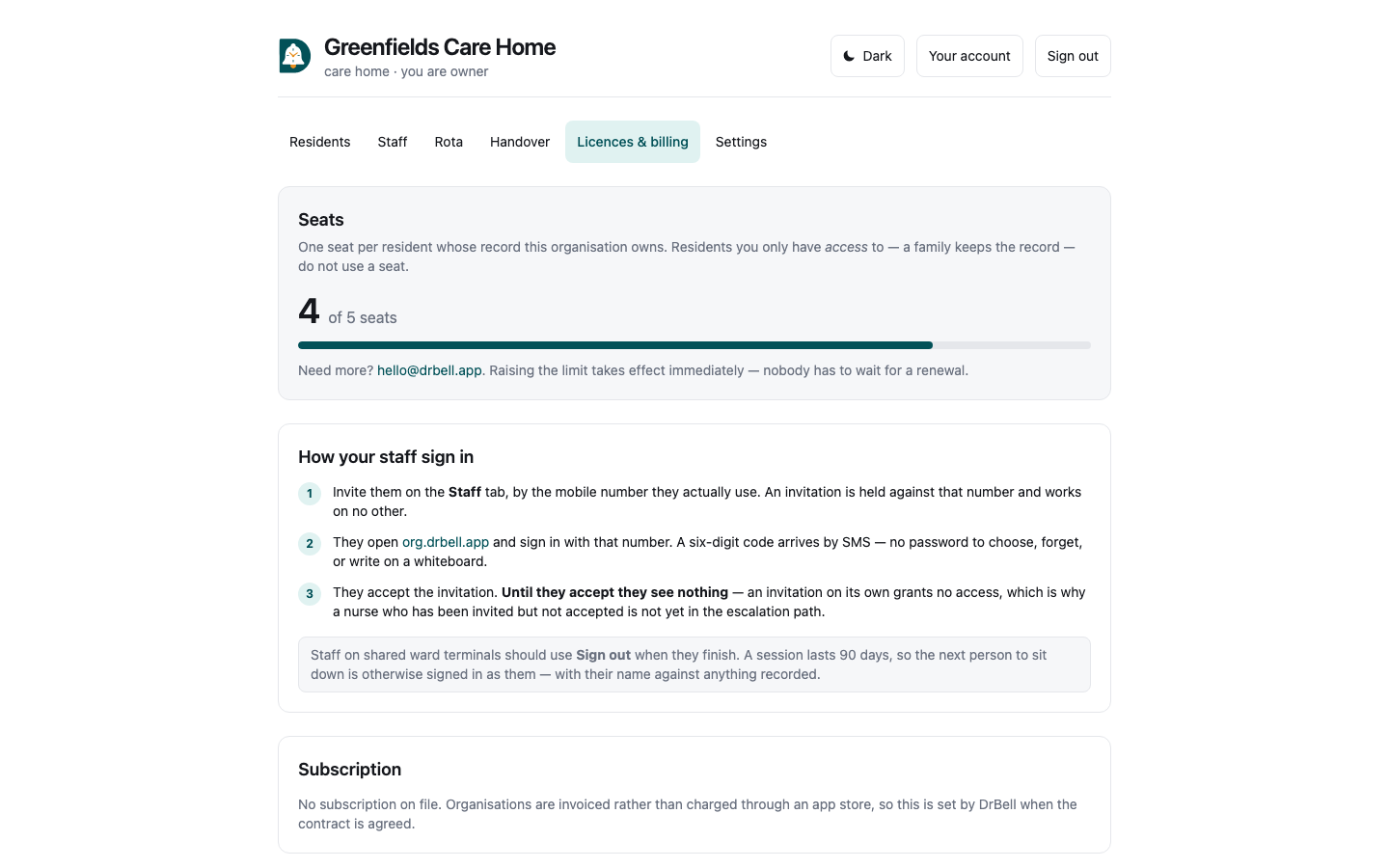
Licences & billing shows how many seats you contracted and how many are in use. One resident is one seat. Removing a resident frees one immediately. Raising the limit needs DrBell — write to hello@drbell.app.
If your organisation is suspended over a billing dispute, reminders for existing residents keep firing. A commercial argument must never stop somebody being told to take their medicine.
Your account
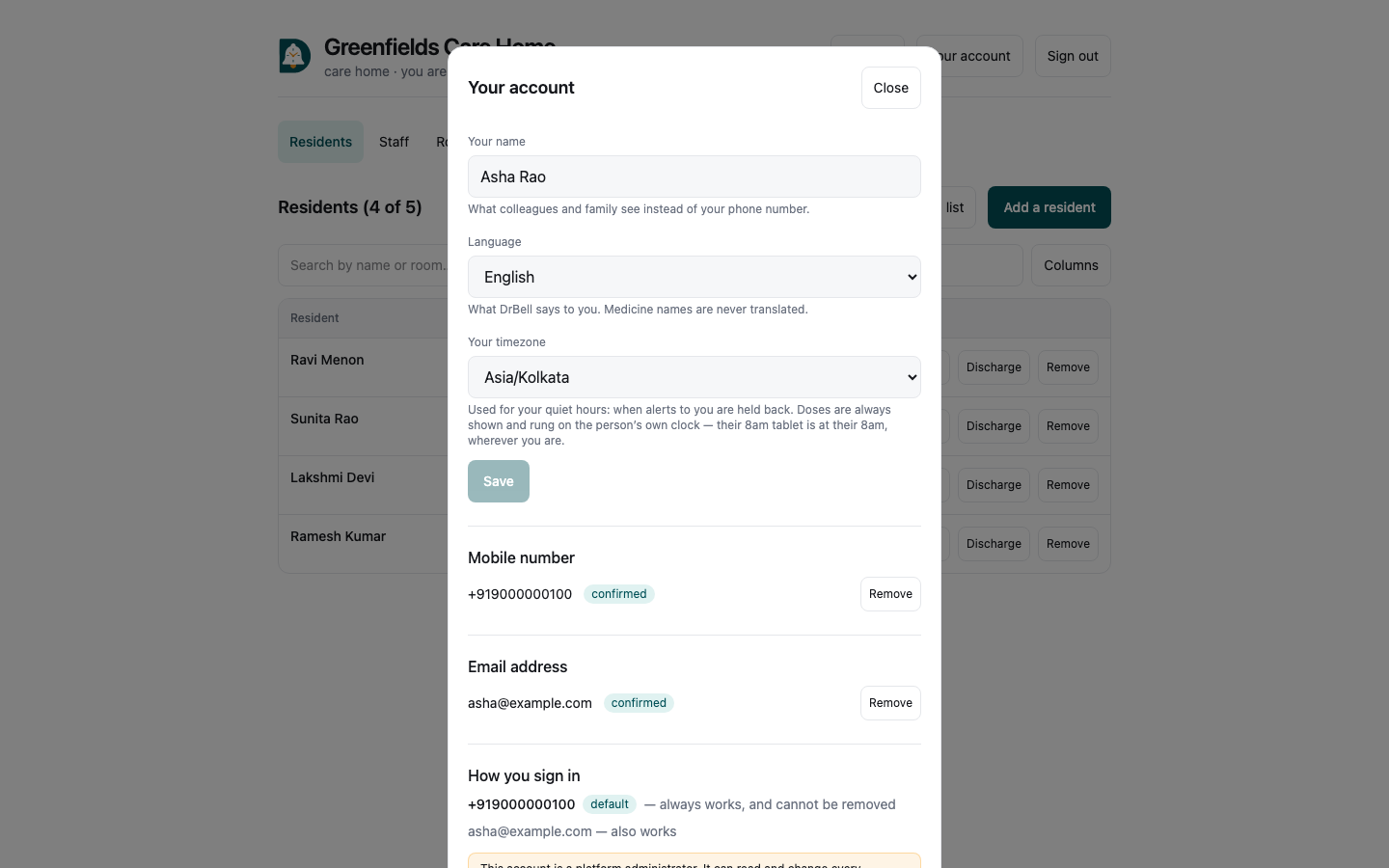
Your account, in the top right of every console (in the left rail on admin), is where you set:
- Your name — what colleagues and family see instead of your phone number.
Until you set one, screens show the number, because that is genuinely all DrBell knows about you.
- Your language — what DrBell says to you. Medicine names are never
translated.
- Your timezone — what times are shown in. It does not change
anybody's reminders: a resident's 8am tablet stays at their 8am, on their clock.
Adding an email address
Optional, and it does not replace your mobile number — it adds a second way in, for people who would rather use email. Enter the address, and a six-digit code confirms it. Your mobile number always works and cannot be removed.
Email sending is not switched on yet. Until a provider is configured, the screen tells you plainly that no code was sent rather than leaving you refreshing an empty inbox.
Questions
A nurse says she cannot see a resident. Check her ward scope under Staff → Change, not the rota.
Nothing appears on the rota's outstanding list. Either nobody is rostered for today, or the residents have no medicines entered yet. Check section 3.
Can we import residents from a spreadsheet? Yes — Residents → Import a list. Download the template or paste rows; you see what will be added before anything is saved.
Does DrBell tell families anything? Only if the resident's family has been given access. Your staff do not appear to families.
Can we sign in with Google or Apple? If DrBell has enabled it, those buttons appear on the sign-in screen. Your phone number always works.
Settings
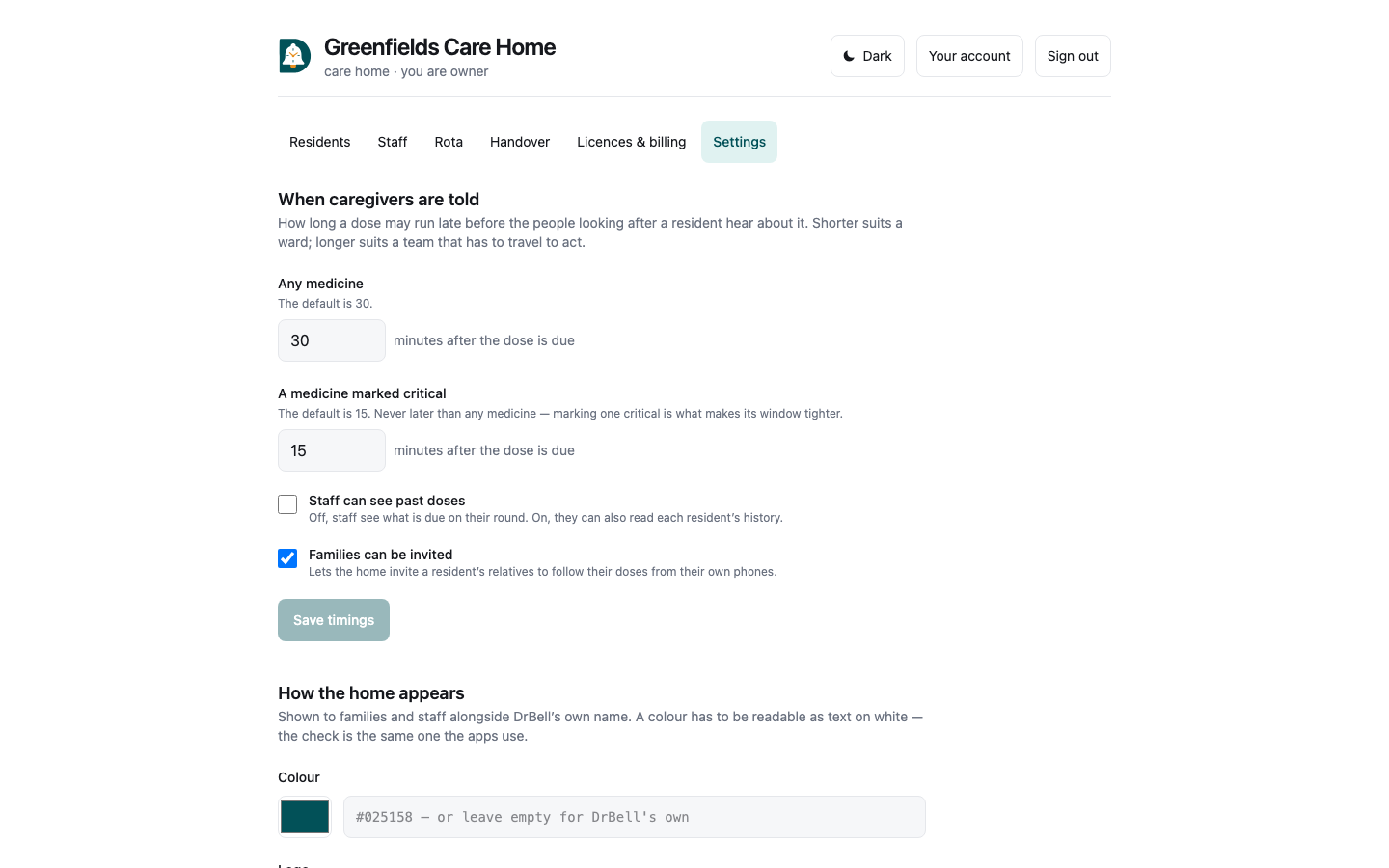
Settings holds four things about the home itself. Owners and admins can change them; everyone else can see what the home is set to, apart from the addresses your own systems receive events at, which only owners and admins see.
When caregivers are told — how long a dose may run late before the people looking after a resident hear about it, once for any medicine and once for a medicine marked critical. A ward wants this short; a team that travels to act wants it longer, because an alert nobody can act on teaches people to ignore alerts. A critical medicine can never be set looser than an ordinary one — marking it critical is what makes its window tighter — and the screen says so before you save. Two switches sit with them: whether staff can read each resident's past doses, and whether the home can invite residents' families.
How the home appears — a logo, a colour and a short tagline. Staff see them in this console's header; families see the logo and "Cared for at" the home's name above a resident's record, on the web and in the app (the app leaves it out in elder mode, which keeps the screen to the medicine card). The colour becomes the buttons' and links' colour in both. It has to be readable as text on white; if it is not, DrBell says by how much and suggests a darker shade. The logo is a PNG, JPEG or WebP image of up to 1MB (no SVG); uploading a new one replaces the old one, and it is visible to anyone with its address, like the sign on the door.
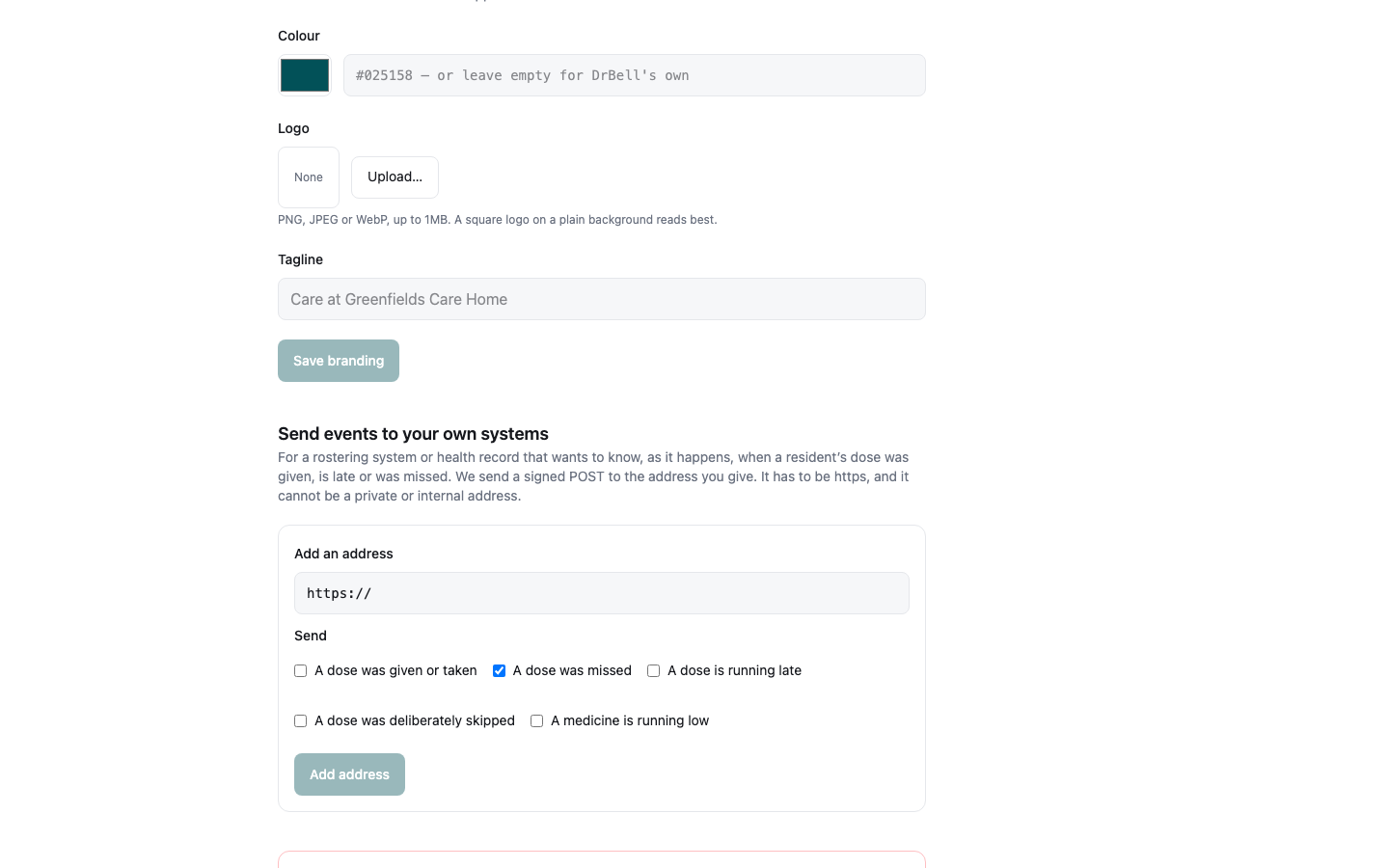
Send events to your own systems — owners and admins only. For a rostering system or health record that wants to know, as it happens, when a resident's dose was given, skipped, is running late or was missed, or that a medicine is running low. Give an https address and tick the events; DrBell sends a signed POST there. Private and internal addresses are refused. The signing key appears once, when you add the address or ask for a new key — copy it into the receiving system straight away, because it is not shown again. Late and missed doses are sent even if you have switched family alerts off: the record still needs to know. An address that fails twenty times in a row is switched off; the screen says so, and switching it back on starts the count again. Every change is recorded against the person who made it.
Erase this organisation — owners only. It deletes every resident's record the home holds, permanently: medicines, doses, history, photographs, caregivers and staff access. Use it when the home stops using DrBell, or when asked to under data-protection law, and export anything you must keep first. You type the home's full name to confirm. A home with more than a hundred residents is erased in the background, and disappears from your list when it is done. Families who look after somebody through their own DrBell account keep that account.